06-23-2026 Q&A: 3D Imports, Topographical Maps, Modeling Resolution, and Sharp Corners
Jun 23, 2026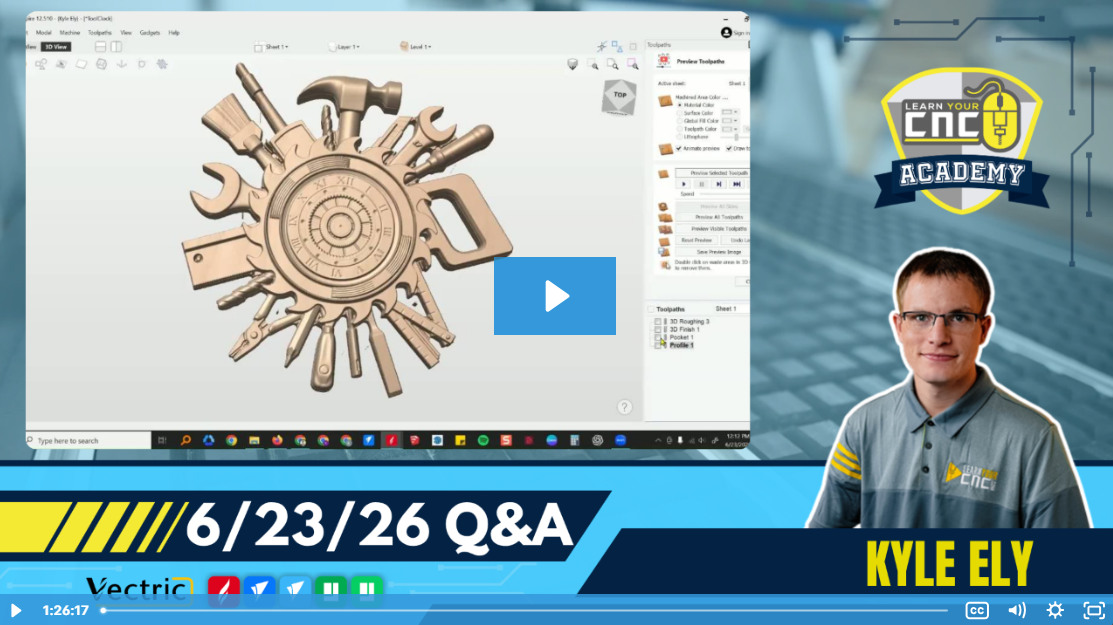
Note: You must be a member of the Learn Your CNC Academy Community to watch this replay. Benefits include weekly Q&A Meetups, weekly project lessons, monthly CNC challenges, an active community of Vectric users, past replay lessons & project files, and so much more!

In this Q&A session, we discussed several 3D carving topics, including fitting 3D files into specific material thicknesses and combining 2D logos into 3D models . We also explored troubleshooting topographical maps, eliminating jagged tool marks by increasing modeling resolution, and creating sharp outside corners on cabinet doors using specific bits . The session highlighted the use of tools like EasyCreate and adjusting toolpath settings for optimal results .
Key Tips Learned in this Q&A:
-
Clearing Internal Islands: When carving a thick 3D model with internal cutouts, it is safer to run a pocket toolpath first to remove the tall internal islands . This prevents the 3D carving bit from crashing into large chunks of waste material.
-
Eliminating Jagged Edges: If your 3D models show stepped or jagged edges, especially on angles, you can increase the Modeling Resolution in your Job Setup . Holding the Shift key while clicking the Job Setup button unlocks hidden "Extremely High" and "Maximum" resolution options.
-
Topographical Maps: For large flat areas like lakes on a topographical map, skip the 3D finish carve in that area by using vector boundaries . Additionally, always add a machining allowance to your 3D roughing toolpath so the finishing pass has material to smooth out.
-
Smooth Arcs Over Segments: When importing form tools from PDFs, they often convert into many small straight-line segments . Redrawing these profiles as smooth arcs using the Node Edit tool will give you a cleaner, higher-quality cut.
-
Simulating Toolpaths: If your actual cut doesn't look right, increase your toolpath preview simulation quality to maximum and reduce the job size in the software to match the actual workpiece . This helps you spot tiny discrepancies and overlapping issues before you actually run the machine.
Questions Answered in this Q&A:
-
00:01:36 - Why did I get an error message stating there are two similar tools with the same geometric design when trying to put all my toolpaths into one file?
-
00:04:35 - Chuck: After importing a 3D file into VCarve Pro, how do I make it fit into a two-inch thick workpiece and how do I fit it to cut inside the zero plane?
-
00:17:50 - Matt: How do I set up the zero plane and position an STL file flag so I can combine a 2D logo into the center of the flag relief?
-
00:23:32 - Dale: Can I take text and turn it into a 3D object to combine it with other 3D objects using only VCarve Pro instead of Aspire?
-
00:33:06 - Mike: Why is my 3D roughing pass shifting out of the boundary on the left and creating small steps on the right side of my topographical map project?
-
00:41:47 - Richard: How do I get rid of the jagged tool marks around the angled sun rays in the background of my 3D badge model?
-
00:53:11 - Jamie: How can I fix the ugly tool marks when trying to cut a sharp outside corner for a cabinet door project using a plunging beading bit and a molding toolpath?
-
01:23:42 - Ken: How do I put an EasyCreate model on top of a clipart shield instead of it hiding down below?
Keywords:
3d importing, tool database conflict, pocket toolpath, jenny bits, time capsule project, combining 3d models, easycreate, vistasculpt, topographical map, stl smoothing, modeling resolution, maximum resolution, sharp corners, form tools, node editing, cabinet doors
Not a member of our Learn Your CNC Academy Community? Join over 1,500+ students today! Benefits include weekly Q&A Meetups, weekly project lessons, monthly CNC challenges, an active community of Vectric users, past replay lessons & project files, and so much more!