03-24-2026 Q&A: Vector Cleanup, STL Exporting, and Text Isolation
Mar 24, 2026
Note: You must be a member of the Learn Your CNC Academy Community to watch this replay. Benefits include weekly Q&A Meetups, weekly project lessons, monthly CNC challenges, an active community of Vectric users, past replay lessons & project files, and so much more!

In this Q&A session, host Ron Sandstrom stands in for Kyle to address community questions regarding VCarve and Aspire. The discussion focuses heavily on the importance of node editing to prevent software lag, techniques for isolating welded text from traced bitmaps, and the step-by-step process of converting 2D vectors into 3D STL files for applications like 3D printing. The session also covers VCarve toolpath logic using the "carve, no-carve" principle and material selection for multi-layered color core projects.
Key Tips Learned in this Q&A:
-
The "Carve, No-Carve" Rule: When working with nested vectors, the software alternates between carving and not carving from the outermost vector inward. Adding an offset boundary can effectively "flip" which parts of a design remain proud and which are engraved.
-
Node Reduction for Performance: Complex SVG files often contain an excessive number of nodes that bog down calculations. Using the "Fit Curves to Selected Vectors" tool (Bezier curves) significantly reduces node counts, leading to faster calculation times and smoother machine movement.
-
STL Export Workflow (Aspire): To export an STL, you must first create 3D components from your 2D vectors. Once the model is visible, use the "Export Visible Model as STL" tool, triangulate the mesh, and click "Save Triangulation" to finalize the file.
-
Isolating Traced Text: When traced letters are "welded" together at corners, use Node Edit mode ($N$) to manually cut vectors at intersection points. This allows you to isolate individual letters for independent spacing or alignment over a background bitmap.
-
Pixelization in Modeling: Because Vectric software uses a pixel-based modeling system, 3D edges may appear "wavy" or pixelated when exported to 3D printers . Using a very fine tolerance (e.g., 0.0001) or recreating the geometry in a CAD-based program can result in smoother vertical walls.
Questions Answered in this Q&A:
-
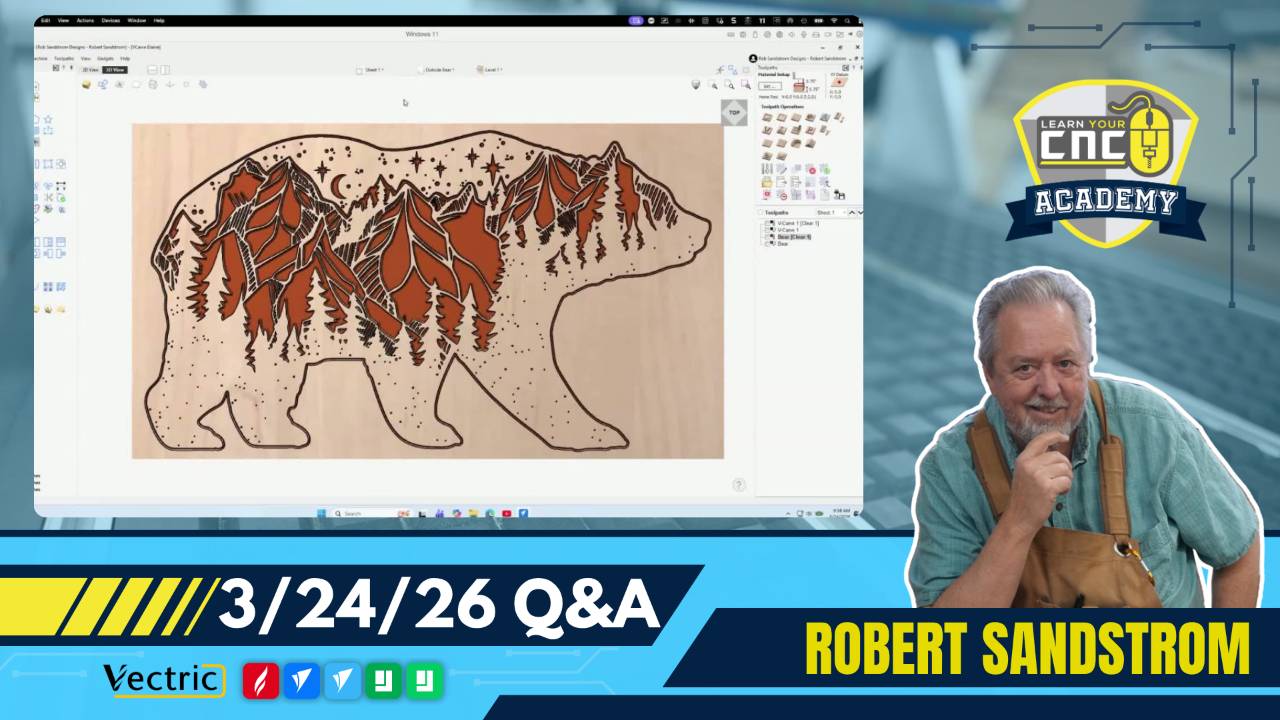
00:01:33 Elaine H. — Why is my VCarve toolpath cutting the mountains out instead of leaving them raised?
-
00:30:40 Steve T. — Is there any way to hide a vector or group of vectors while I am working?
-
00:33:30 Timothy B. — How do I separate letters that are welded together after tracing a bitmap so I can space them out?
-
00:53:50 Fred — How do I convert a 2D drawing into an STL file for exporting from Aspire?
-
01:14:26 Ruth W. — What does the "Maximum Number of Triangles" setting do during STL export?
Keywords:
node editing, vcarve toolpath, stl export, aspire 3d, vector validator, curve fit, triangulation, pixelization, layer management, text isolation, node reduction, 3d printing, color core, bitmap tracing
Not a member of our Learn Your CNC Academy Community? Join over 1,500+ students today! Benefits include weekly Q&A Meetups, weekly project lessons, monthly CNC challenges, an active community of Vectric users, past replay lessons & project files, and so much more!