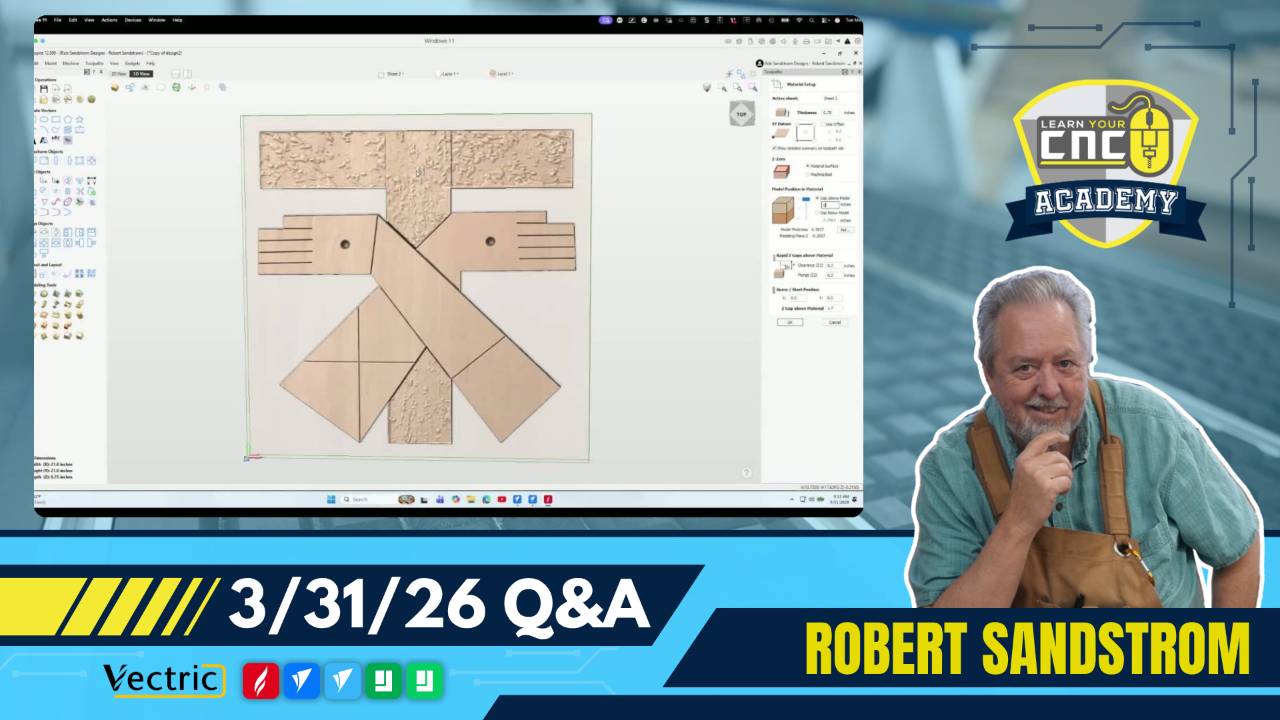
03-31-2026 Q&A: Optimizing 3D Toolpaths, Component Merging, and Custom Engraving Bits
Mar 31, 2026
Note: You must be a member of the Learn Your CNC Academy Community to watch this replay. Benefits include weekly Q&A Meetups, weekly project lessons, monthly CNC challenges, an active community of Vectric users, past replay lessons & project files, and so much more!

In this Q&A session, Speaker 2 (Rob) addresses several user-submitted projects involving complex 3D carvings and sign design. The discussion focuses on drastically reducing estimated carve times for large 3D models, troubleshooting component "add" vs. "merge" modes in VCarve Pro, and techniques for isolating specific elements of a 3D model using AI-generated designs. The session concludes with a detailed technical walkthrough on how to "fool" Vectric software by defining tapered ball nose bits as engraving bits for high-detail inlay work .
Key Tips Learned in this Q&A:
-
Drastic Time Reduction: To cut down on massive 3D carve times (e.g., 400+ hours), ensure the model is imported correctly onto the modeling plane rather than deep inside the material boundary . Using a larger roughing bit followed by a targeted finishing pass can reduce carving time by hundreds of hours.
-
Component Combined Modes: If top text or a bar is appearing at uneven levels across a 3D background, change the component's combined mode from "Add" to "Merge" . This ensures the components blend at the same level rather than stacking their heights.
-
Tapered vs. Straight Ball Nose: Tapered ball nose bits are preferred for fine 3D detail because they are significantly stronger than straight ball nose bits of the same tip diameter, allowing for faster speeds with less risk of breakage.
-
Isolating AI Models: When using AI tools like "Easy Create" to generate models, it is often more efficient to create separate models for individual elements (e.g., a stingray and a background) rather than one complex model . This allows for easier resizing and positioning within VCarve.
-
Custom Tool Definition: You can use tapered ball nose bits for V-carving by entering them into the tool database as "Engraving Bits" . This requires manually entering the specific side angle and tip radius to allow the software to calculate V-carve toolpaths .
Questions Answered in this Q&A:
-
00:00:56 - John A: How can I cut out a large 3D STL file faster than the estimated 300+ hours?
-
00:32:25 - Matt P: Why is my top text not showing at the same level evenly across my sign?
-
00:41:20 - Alan D: How do I reduce the height of a 3D model to fit my stock and remove or move specific parts of the background?
-
01:04:14 - Irwin D: What is the best way to set up toolpaths for a military award plaque using HDPE or Color Core plastic?
-
01:25:43 - Kristen B: How do you set up a 1/8 inch tapered ball nose bit as a V-bit in the tool database?
Keywords:
stl, 3d toolpath, roughing pass, finishing pass, tapered ball nose, component tree, merge mode, easy create, hdpe, color core, engraving bit, tool database, v-carve, modeling plane, side angle
Not a member of our Learn Your CNC Academy Community? Join over 1,500+ students today! Benefits include weekly Q&A Meetups, weekly project lessons, monthly CNC challenges, an active community of Vectric users, past replay lessons & project files, and so much more!